
1. Sign into your iUgo admin account.
2. In the blue bar go to Settings and search the school name.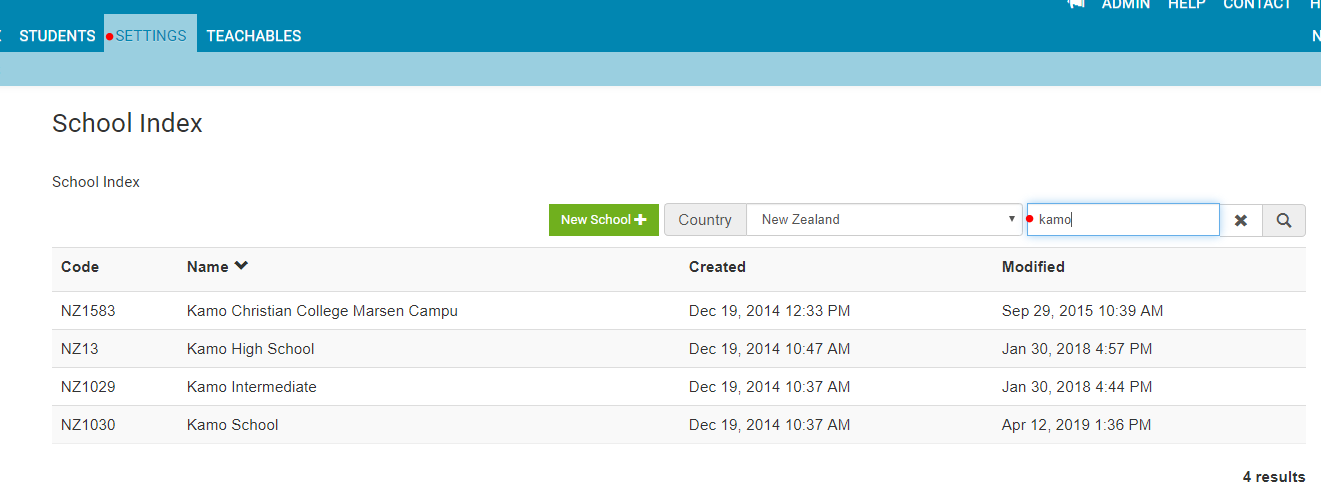
3. In the next page you will see the school account settings - scroll down until you see the 'deleted items' section. Click on 'Deleted Event Series'.
4. In the next page that loads you will see two parts 'Series' which will display deleted event series and 'Events' which will show deleted single events that were once offs.

5. To locate the correct deleted item - ask the customer the name of the event, the timeframe and when it was deleted. Then click on the 'Restore' button and it will show up back on their accounts.
