
*Notes:
- You are unable to merge to make inactive a contact that has a web account. A contact who has a web account displays an email address on the iUgo2 login category.
-Click on the images below to view them in full size.
Step 1 Open the customer edit form in accredo.
Go to the navigator to the left of accredo, select the test tab, then click on Customer Contact Edit.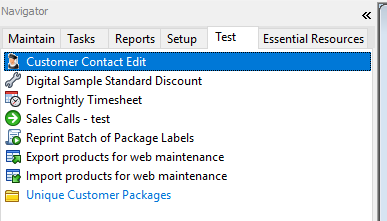
Open and the contact form, search the school number to bring up their details.
-Searching the school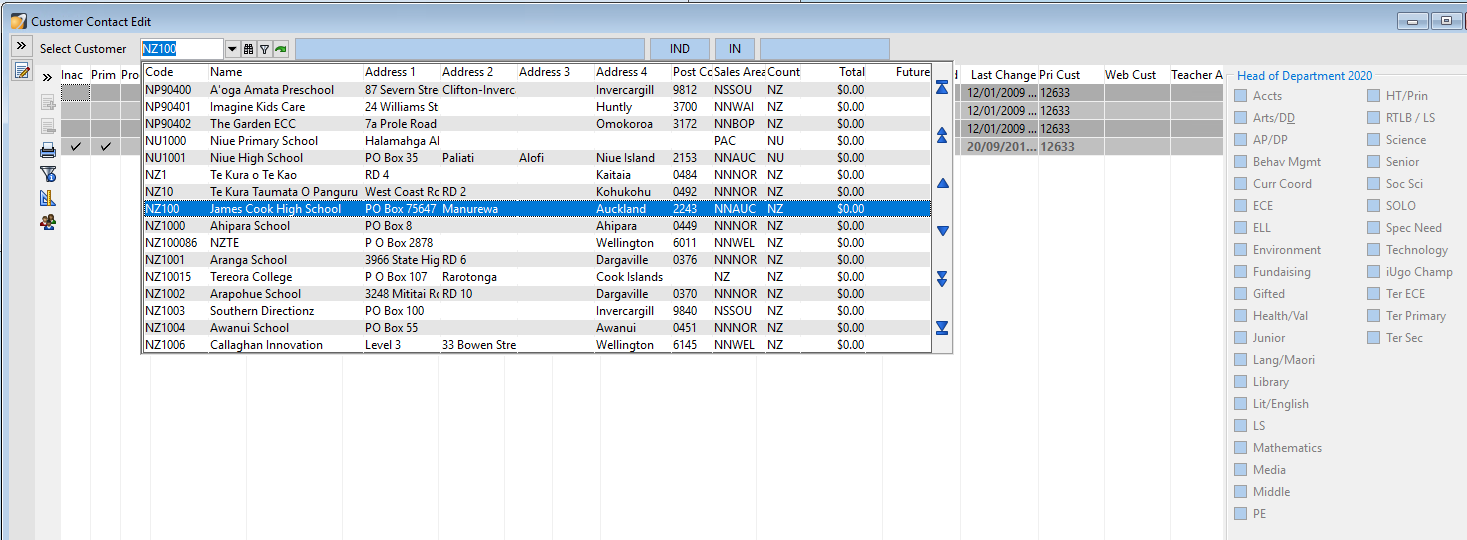
-Selecting the school and displaying the contacts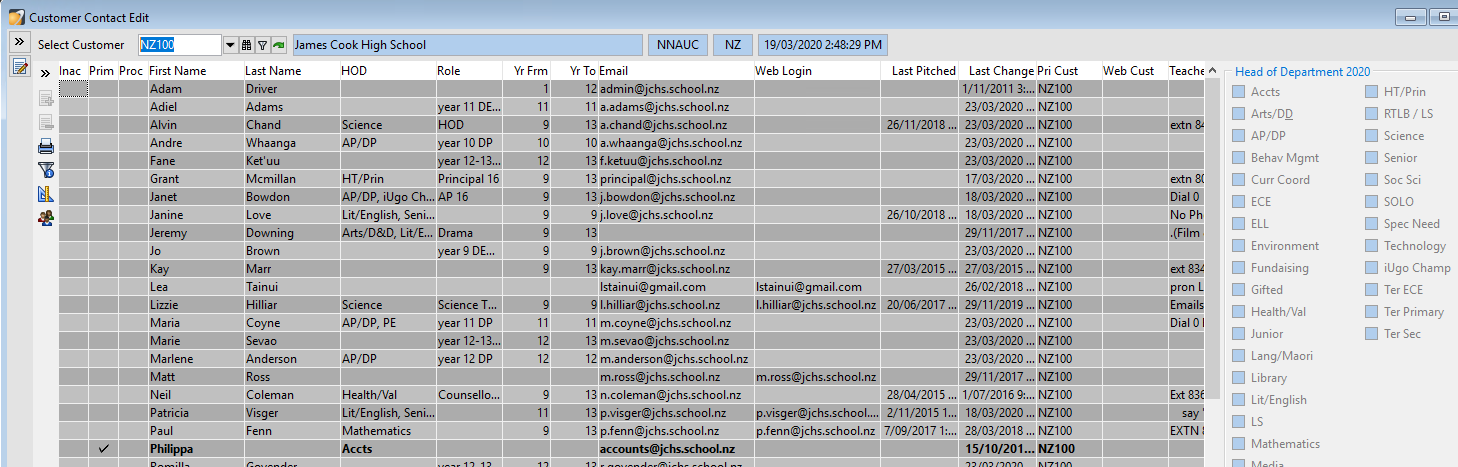
Step 2 Seaching for the school on the web:
Using Google, search the school name and specifically add keywords such as 'Teachers' 'Team' or 'Staff' to get better results with finding a schools staff list.
You can also search:
- First newsletter of the school year.
- Stationary lists (sometimes have these details)
- School Facebook page.
Step 3 Making changes:
Then you will need to run through the information on the school website and check the details we have in accredo. Here is a checklist of what needs to be done for each school and further down is instructions on how to apply these changes.
1. Is the current staff list up to date:
- email address changes
- Year levels changes
- Subjects taught changed
- role in the school
- Is the primary contact/ accounts person still up to date
2. New contacts (try and add as much detail as possible):
- full name
- email address ( if you can't see this on the website then this may follow the same format as the rest of the school e.g firstname.lastnameinitial@schoolname.school.nz
- Year level taught
- Role in the school (e.g DP, HOD)
- Subjects taught
- To make changes in the contact form click on the edit icon on the top left hand corner of the accredo form. Now you can type into the boxes where the information displays. 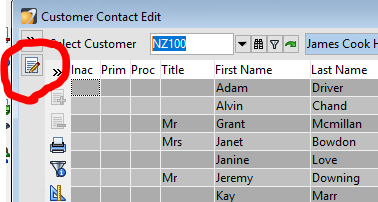
- To edit details - click on the section you wish to edit and type over, this includes
Name, role, year from and to, and email address
- To add a subject to a contact, select the contact name then tick the box next to the subject name in the head of departments section on the right hand side.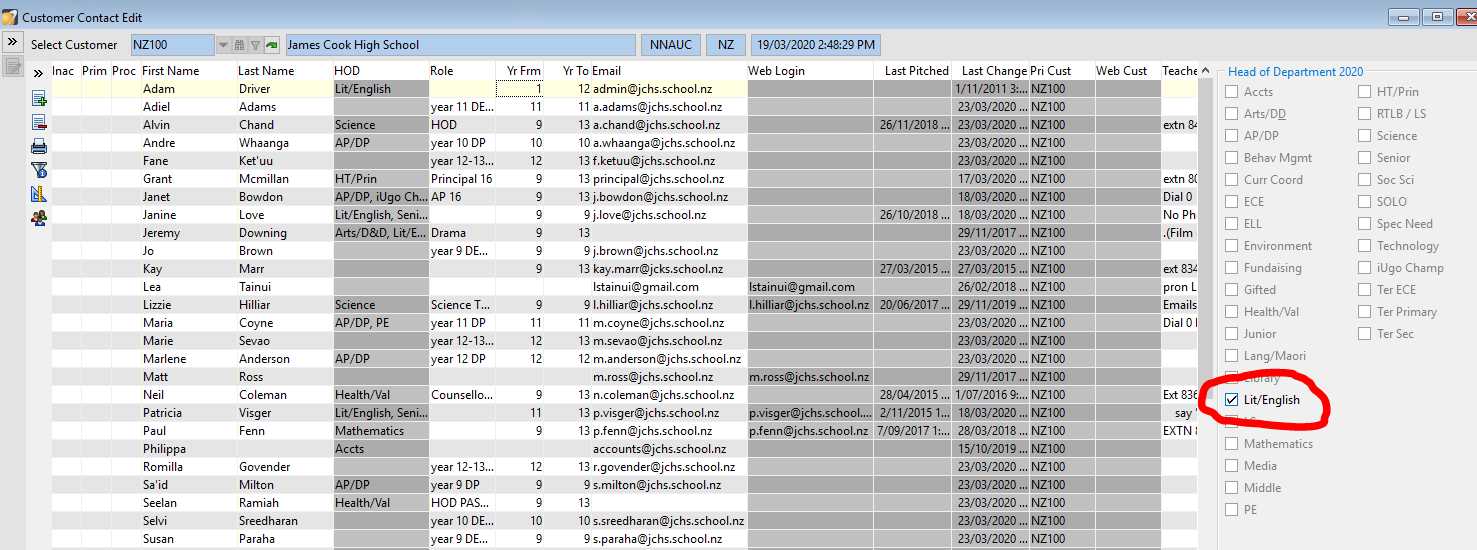
- To mark as primary contact click into the Prim box and a tick will appear.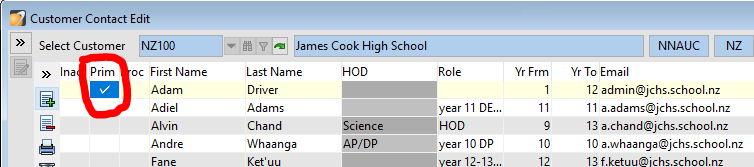
- To add a new contact, click on the edit icon on the top left hand corner then click on the plus icon to add a new line that you can type into.
- To make a contact inactive (unable to do this for contacts with a web account) click on the first category 'Inac' a tick should appear.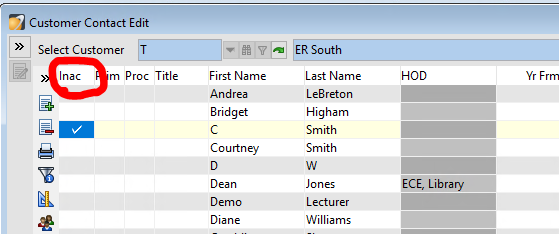
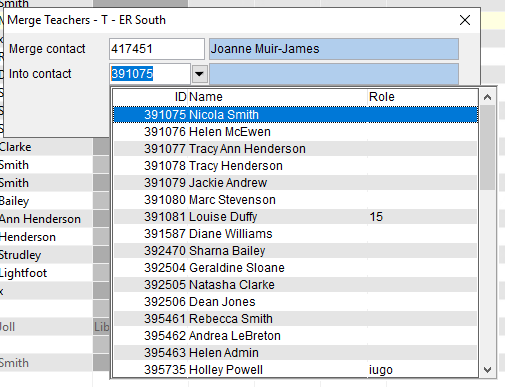
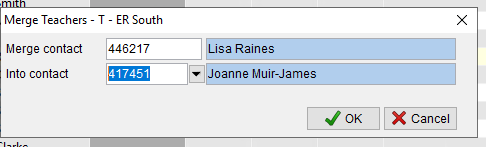
- To merge a contact, select one contact, you should see it faintly highlighted yellow. Then click on the 'merge teachers' icon to the left of the window.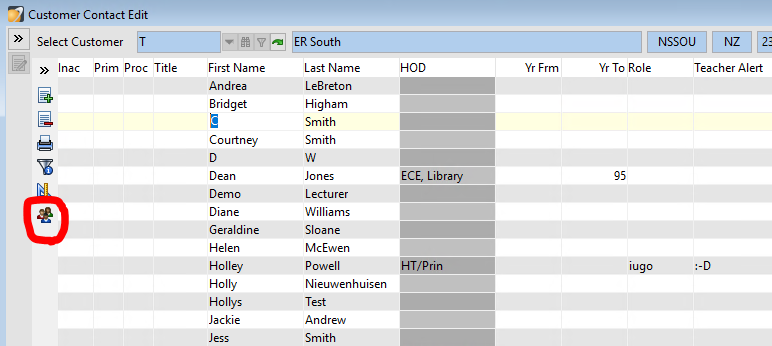 You will get a pop-up asking which teacher the contact you selected you be merged into then click OK.
Step 4 Final check and saving:
Once you have finished with all your additions, changes, merges etc, as a final checkover go through each contact and mark them as 'Processed' when this is done a tick will display in this category 'Proc'.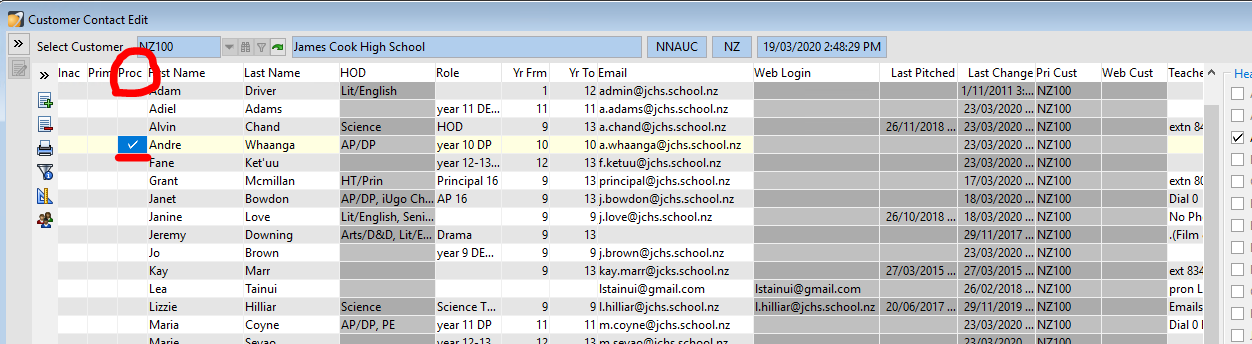
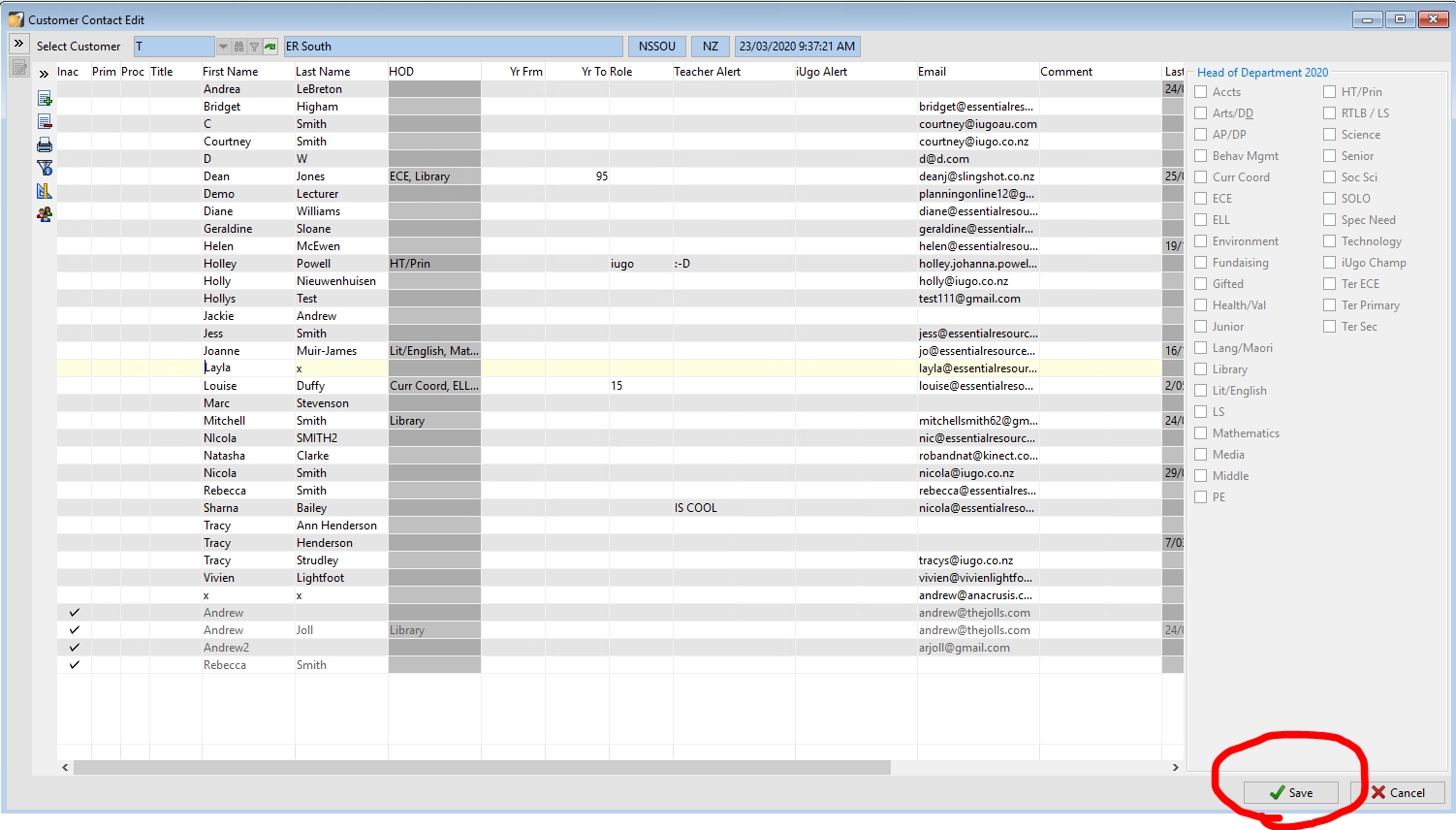
Then once this checkover is done click on the save button at the bottom right hand corner to close the school and save all changes.
In your excel list on Google Drive, please mark the school you have completed in the following way:
1. Highlight yellow if new contacts were added
2. Highlight orange if you've checked the school but no data could be found on the web
3. Bold if this isn't a school and perhaps shouldn't be on this list (we will come back to this later in case category changes are needed)