Login detail structure for a new account:
- School name, use the first part so Miller Avenue School will be entered into J2E as Milleravenue. A catholic school like St Patrick's school Invercargill will be Stpatricksinv
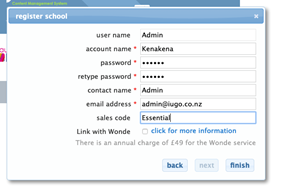
- The first account registered with a school will be the Admin and will use the below details the only change will be the school name. The password for all admin account will be j2e123
- For the short term, enter any new account details here.
Setting up a J2E school account
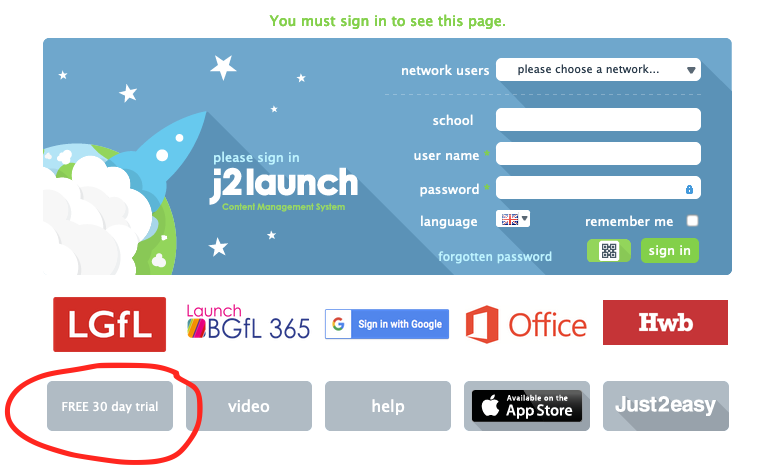
1. Head to www.j2e.com
2. Hold the shift key down and click 30 day trial
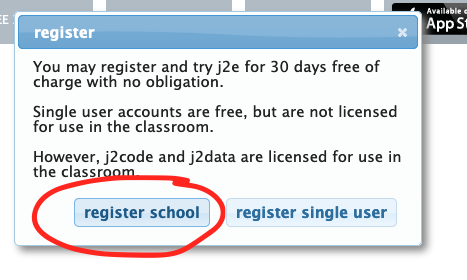
3. Select Register School
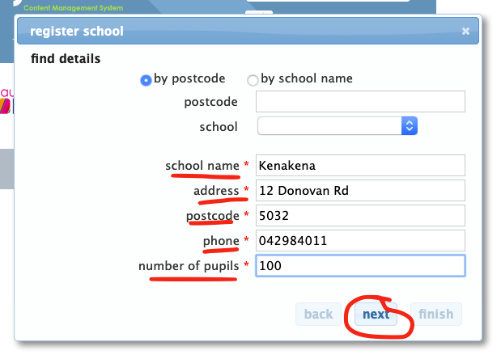
4. Find School. There will be no NZ or AU schools so add School Name, Address, Postcode, phone, number of pupils.
Then click Next
5. Register school.
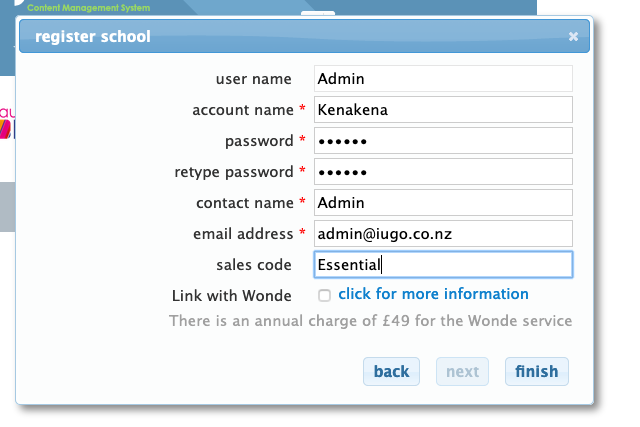
This is setting up the school and an Admin login which ER will use
Add Account name (which is school name they will use to login)
Password: j2e123
Contact name: Admin
Email Address: admin@iugo.co.nz
Sales Code: Essential
Ignore Link with Wonder
Then click Next, Finish
6. You will get the following message when registration is successful: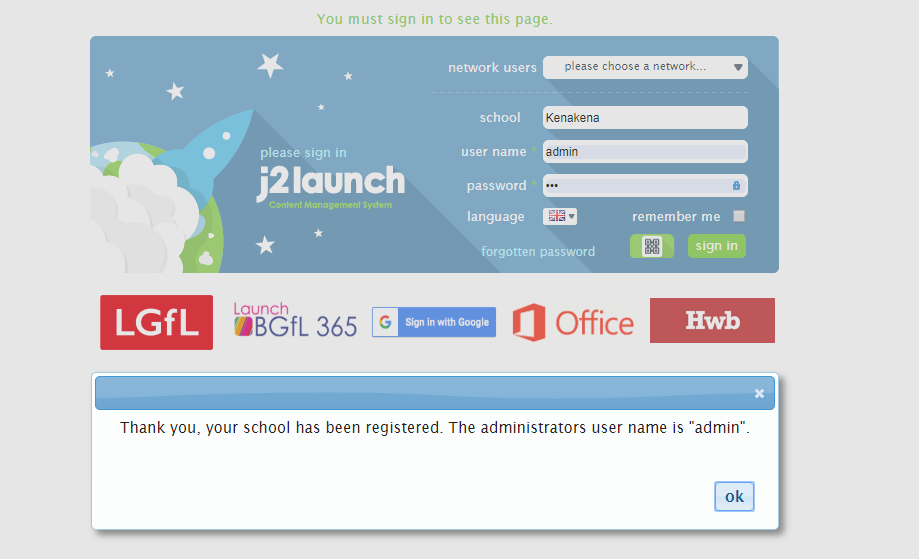
7. If the postcode is already in use It will say and account has already been registered at this postcode. Ignore it and click continue registration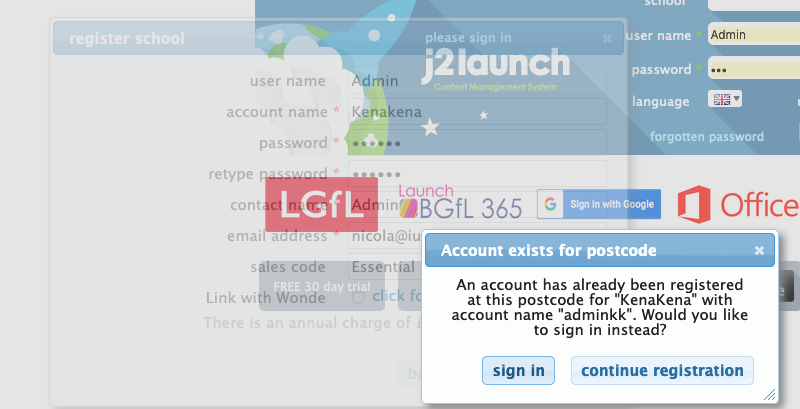
8. You should now be setup, receive an email and be able to login
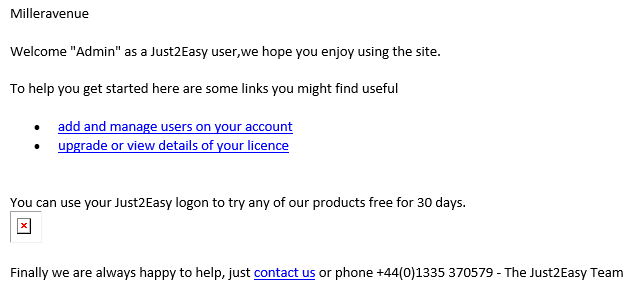
This is the welcome email that only the first admin will receive.